
www.rabbitcalls.com+91 8140501868support@rabbitcalls.com
Audience
Manage contacts and audience groups for outbound campaigns — add one-by-one or upload CSV.
Module guide
Audience
Manage contacts and audience groups for outbound campaigns — add one-by-one or upload CSV.
Purpose
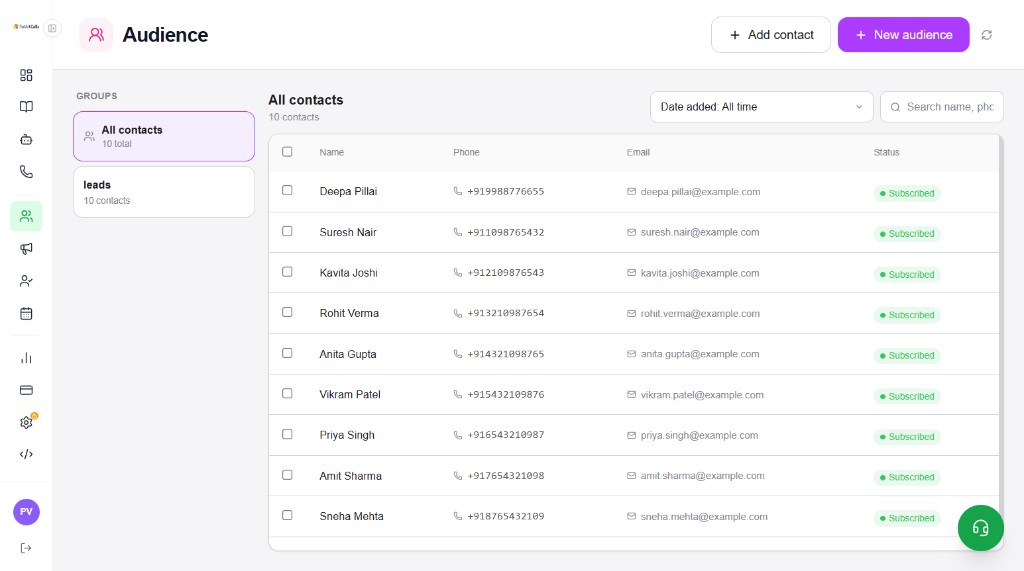
Audience is your contact module for dialling — not a full CRM. Build groups (audiences), add contacts, then select that list when you launch a Campaign.
What you see
Left: GROUPS lists All contacts and named audiences (e.g. leads). Main table shows Name, Phone (+91…), Email, and Status (e.g. Subscribed). Use Date added and Search to filter.
- + Add contact — add a single person to an audience
- + New audience — create a group and/or upload a CSV
- Refresh — reload the contact list
Upload a new audience (CSV)
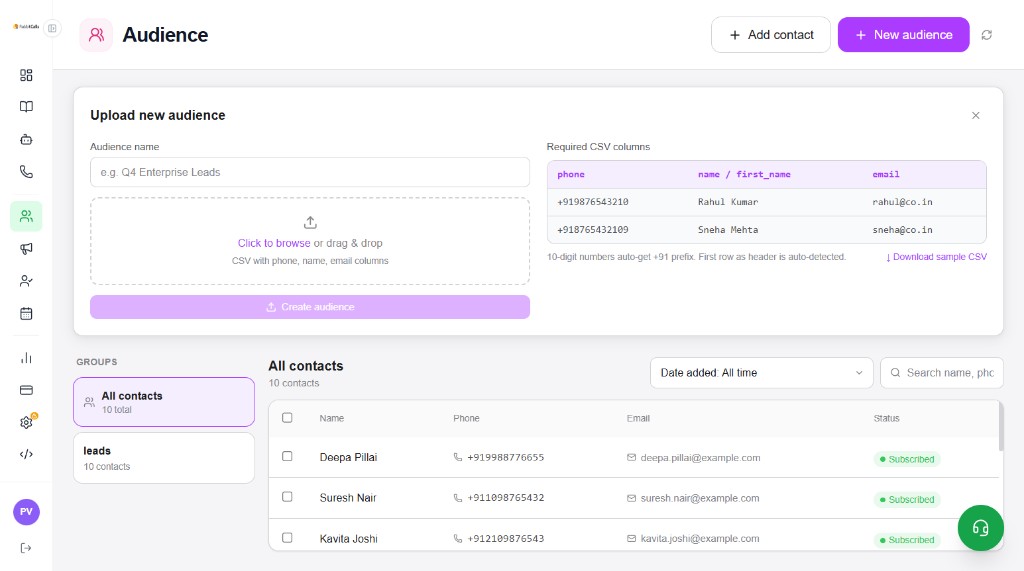
Click + New audience to open Upload new audience. Name the list, then drag & drop or browse a CSV.
- Required columns: phone (required), name / first_name, email
- First row as header is auto-detected
- 10-digit Indian numbers auto-get the +91 prefix
- Download sample CSV if you need the exact format
- Create Audience enables after name + valid file
Add a single contact
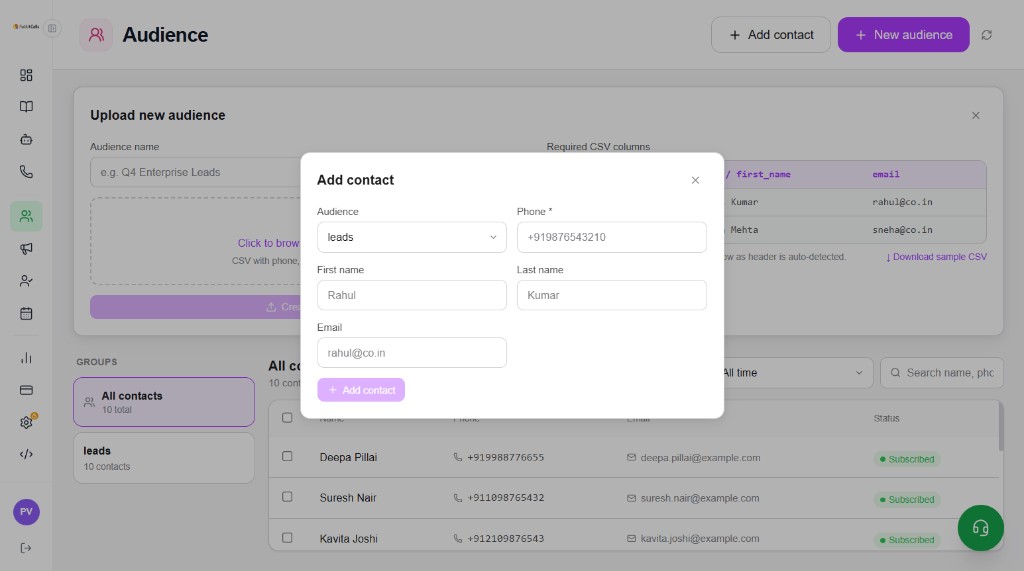
Click + Add contact. Choose the Audience group, enter Phone (required), optional First name, Last name, and Email, then + Add contact.
- Audience — which group receives this contact (e.g. leads)
- Phone * — use +91… or 10 digits (prefix applied for India)
- First name / Last name / Email — optional but useful for personalised agents
Use in campaigns
When you create or edit a Campaign, select the audience / group you built here. Keep All contacts for browsing; use named groups (leads, Q4 Enterprise Leads, etc.) for dialling targets.