
www.rabbitcalls.com+91 8140501868support@rabbitcalls.com
Settings
Profile, invoice billing details, team invites, and Google Calendar sync for appointments.
Module guide
Settings
Profile, invoice billing details, team invites, and Google Calendar sync for appointments.
Purpose
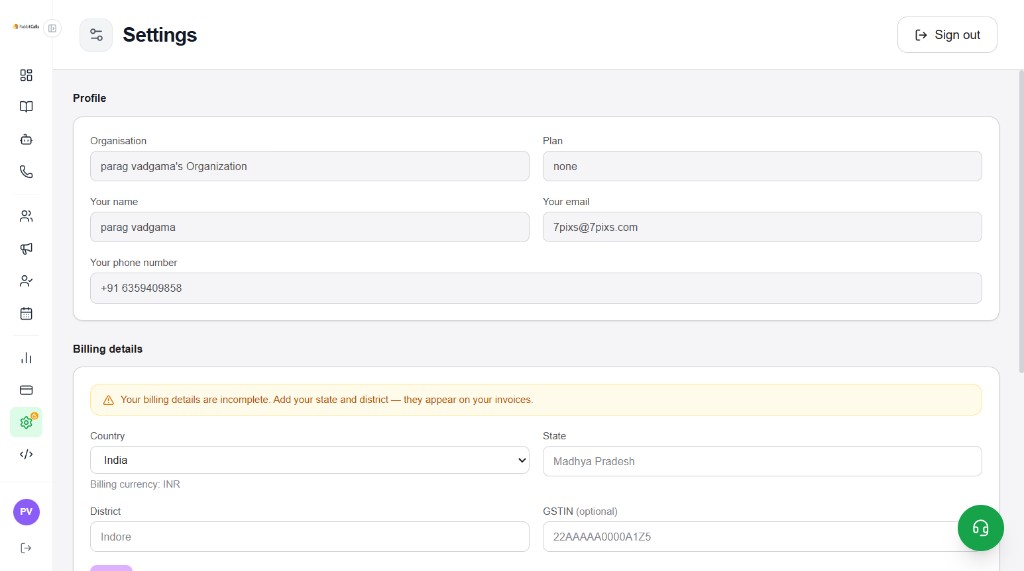
Settings holds your workspace profile, invoice billing address, team access, and Google Calendar connection for appointment sync. Use Sign out from the header when needed.
Profile
Shows Organisation, Plan, Your name, Your email, and Your phone number for the logged-in user.
Billing details (invoices)
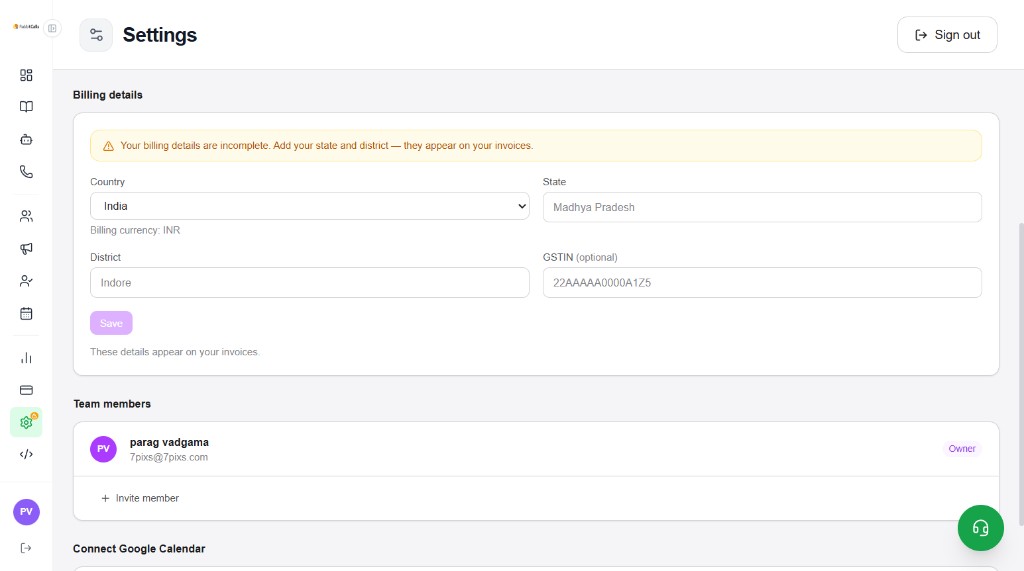
Complete Country, State, District, and optional GSTIN so invoices show the correct address. A yellow banner appears when state/district are missing.
- Country — e.g. India (Billing currency: INR)
- State / District — required for complete invoices
- GSTIN (optional) — for GST-compliant invoices
- Save — details appear on your invoices
Team members
See who has access (Owner and members). Invite colleagues with + Invite member.
- Owner badge on the account owner
- + Invite member — add teammates by email
Connect Google Calendar
Sync appointment bookings two-way with Google Calendar. Click Connect Google Calendar, sign in with Google, and approve calendar access. Bookings from Agents / Appointments can then appear on your Google Calendar, and updates can sync back.
- Open Settings → Connect Google Calendar
- Click Connect Google Calendar and complete Google OAuth
- Confirm Appointments → Resources & Hours is configured so there are slots to sync
- Use Appointments Calendar/List to verify bookings after connecting
